34-Inch Ultrawide Monitors: The Sweet Spot Explained
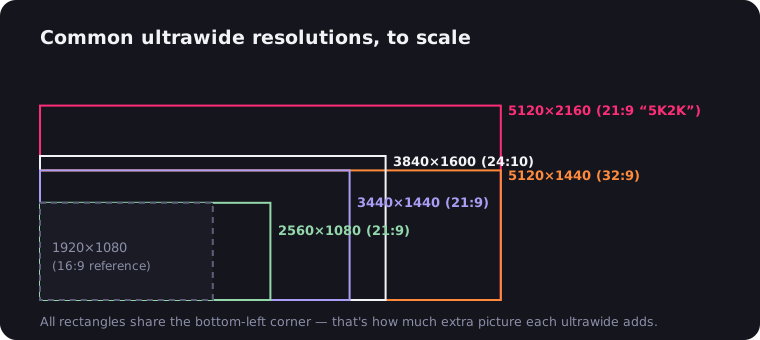
Ask "which ultrawide should I buy?" anywhere and the answer converges fast: a 34-inch 3440×1440 panel. It's the size the whole format organized itself around — the most models, the best prices, the widest panel-type selection, and the one configuration where sharpness, desk fit and GPU load all land in the comfortable zone at once. Here's why 34 inches became the default, how to choose between the panel types sold at this size, and the honest signals that you should size up instead.
Why 34 Inches Is the Sweet Spot
The sharpness math works. 3440×1440 spread across 34 inches gives about 110 pixels per inch — comfortably sharper than a 27-inch 1440p panel (109 PPI is essentially the same, but you get it with far more real estate) and crisp enough to run at 100% scaling: every pixel is usable workspace, no scaling blur, no fractional-scaling headaches. Drop the same resolution onto cheaper 34-inch 2560×1080 panels and PPI falls to 82 — visibly fuzzy. The resolution and the size are a matched pair; the ultrawide resolution guide runs the numbers for every other combination.
The desk math works. A 34-inch 21:9 panel is roughly 80 cm wide and 34 cm tall — the same height as a 27-inch monitor, a third wider. It fits a standard 120 cm desk with room for speakers, and critically, it fits you: at normal desk distance the entire screen sits within a comfortable eye sweep. No head-turning, no far corner you forget exists. Bigger ultrawides are glorious, but they start making demands — 49-inch panels want 70+ cm of desk depth and a chair you rotate slightly to use.
The GPU math works. 4.95 million pixels is 2.4× the load of 1080p but about 40% fewer pixels than 4K. A mid-range card from the last few GPU generations drives 3440×1440 at high refresh rates in most games; the 4K-class budget stays in your pocket. For a big cinematic image per rendering dollar, nothing on the size chart beats it.
The market math works, too. Because 34-inch is the volume size, competition is thickest there: it's the only ultrawide size where you can choose between budget VA, color-accurate IPS and flagship OLED, at every refresh rate from 60 Hz to 240 Hz.
Panel Types at 34 Inches: VA, IPS, OLED
Every 34-inch buying decision reduces to one three-way choice:
| Panel | Strengths | Watch out for | Typical buyer |
|---|---|---|---|
| VA (usually curved) | Deep contrast, lowest prices, high refresh cheap | Off-angle contrast shift, slower response | Budget, movies, mixed use |
| IPS / Nano IPS | Accurate color, wide viewing angles | Shallower blacks, "IPS glow" | Office, design, shared desks |
| QD-OLED / WOLED | Perfect blacks, near-instant response, real HDR | Burn-in care, price, dimmer full-screen brightness | Gamers and film watchers |
The curve question overlaps here: 34-inch VA panels are almost always curved (1500R–1800R), IPS comes both ways, and the OLEDs are curved at 1800R or tighter. Whether that's a feature or a compromise for you depends on what you do all day — the curved ultrawide guide breaks down when the curve helps and when flat wins.
LG's 34-Inch Lineup: The Reference Point
You can map the entire 34-inch market using one brand's catalog, because LG effectively is the reference — LG Display manufactures a large share of the world's ultrawide panels, LG coined the "UltraWide" branding, and its lineup covers every tier:
- LG 34WP65C class — curved VA, 160 Hz, HDR10. The budget default for years and the answer to "cheapest 34-inch that isn't a mistake." Our budget guide starts here.
- LG 34WN80C class — gently curved IPS with USB-C power delivery. The home-office pick: one cable to a laptop, accurate color, restrained styling. Kin to our office ultrawide picks.
- LG UltraGear 34GP83A / 34GN850 class — Nano IPS, 144–160 Hz, 1 ms. The mainstream gaming tier and long-time enthusiast favorite; context in the gaming ultrawide guide.
- LG UltraGear 34GS95QE class — 240 Hz WOLED with an aggressive 800R curve. LG's flagship answer to the QD-OLED wave.
Competitors slot neatly into the same tiers: Gigabyte's G34WQC undercuts the 34WP65C, the Alienware AW3423DWF and Samsung Odyssey OLED G8 headline the OLED tier, and Dell, ASUS, MSI and AOC field alternatives at every step — the full buyer's guide names the standouts per category. But if you learn LG's ladder, you can place any 34-inch monitor on it in seconds.
One footnote from LG's own catalog proves the sweet-spot rule by exception: the 34WK95U crammed 5120×2160 into 34 flat inches — gorgeous 163 PPI, niche price, and a resolution that most buyers are better served getting at 40 inches instead.
What 34 Inches Is Like to Live With
Daily reality, briefly. Two full-size browser windows or documents sit side by side with no compromise (three works with tiling shortcuts). A video editor gets a real timeline; a spreadsheet shows columns into the alphabet's second lap. Games with Hor+ scaling render a third more world. And 2.39:1 films fill the panel edge to edge — the screen is nearly the exact shape of cinema's scope format.
The one daily annoyance is inherited from the aspect ratio, not the size: almost all web video is 16:9, so YouTube, Netflix and Twitch sit between black pillars roughly 10 cm wide on each side. The free UltraWide Video extension for Chrome and Edge fixes that with a 21:9 preset — here's the YouTube walkthrough. Install it the day the monitor arrives and the pillars become a non-issue.
When to Step Up: 38, 40 or 49 Inches
The 34 is the default, not the ceiling. Three honest reasons to outgrow it:
- You want more height too → 38-inch, 3840×1600. Same ~110 PPI, meaningfully more canvas in both directions. The catch is price: low production volumes keep 38s disproportionately expensive — often closer to 40-inch money than 34-inch money.
- You want density and one-cable docking → 40-inch, 5120×2160. The 5K2K class (LG 40WP95C class) is 4K-and-a-third-more with Thunderbolt docking — the productivity endgame, at endgame GPU and wallet cost.
- You want to replace two monitors outright → 49-inch, 5120×1440. Exactly two 27-inch QHD screens fused seamlessly. Transformative for sim rigs and multitasking, demanding of desks and GPUs — read the 49-inch guide before committing, and the full buyer's guide for how all the sizes stack up.
If none of those three sentences described you, you've just confirmed the thesis of this article.
The Bottom Line
The 34-inch 3440×1440 ultrawide is the format's center of gravity because every relevant number lands in the green: 110 PPI sharpness at 100% scaling, a footprint any normal desk absorbs, a pixel load mid-range GPUs handle, and the deepest model selection at the friendliest prices. Pick your panel type, pick your curve, add the one browser extension that makes web video match the shape — and you'll understand why nobody who buys this size asks the "which ultrawide" question twice.

Watching on an ultrawide monitor?
UltraWide Video removes black bars from YouTube, Netflix, Prime Video and any other site — zoom or stretch any video to fill your 21:9 or 32:9 screen.