How to Remove Black Bars from YouTube Videos (Ultrawide Guide)
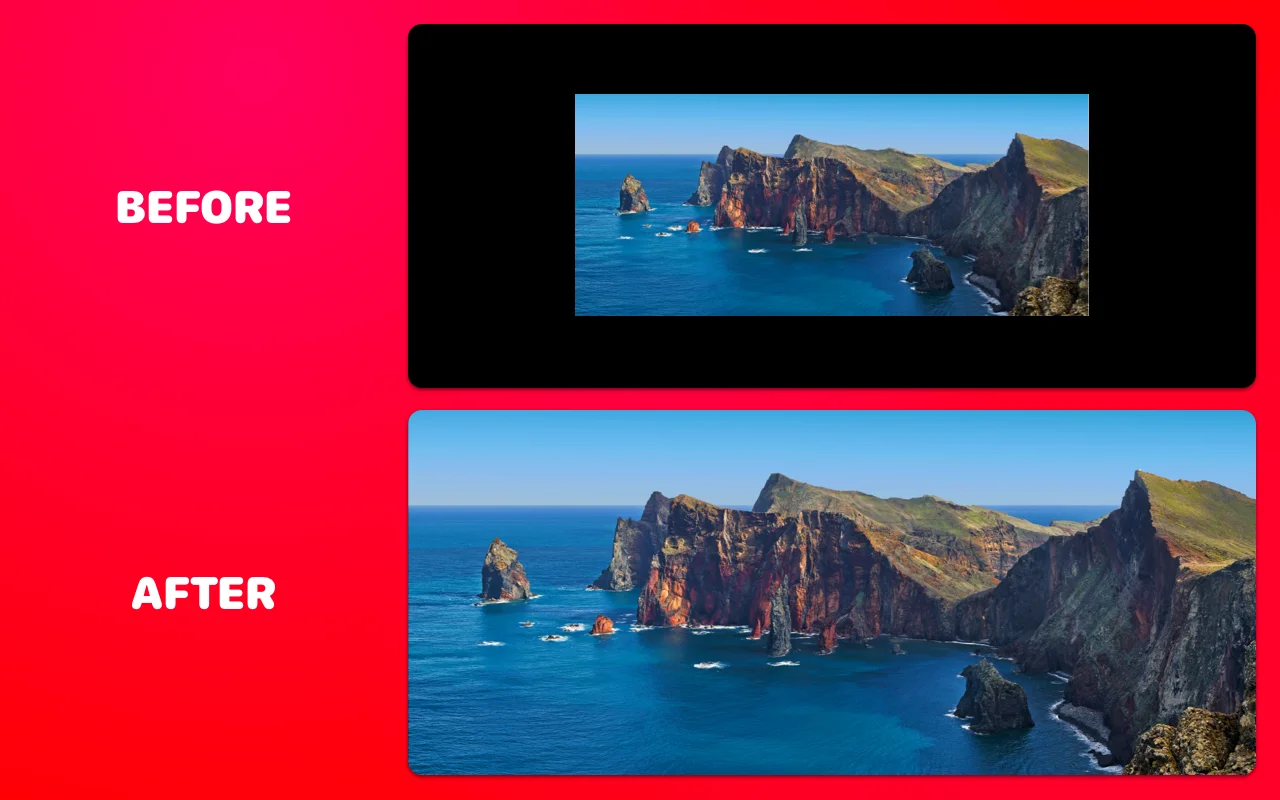
You bought an ultrawide monitor for edge-to-edge video, and YouTube handed you black bars instead. The cause is simple: YouTube serves almost everything in 16:9, and a 21:9 or 32:9 screen is wider than that, so the player parks the video between black pillars. YouTube has no built-in fix — but a free browser extension solves it in about three clicks. Here's the full setup, the shortcuts, and the honest comparison with every manual workaround.
Why YouTube Shows Black Bars on Ultrawide
Two flavors, one cause — an aspect-ratio mismatch:
- Bars left and right (pillarbox): the video is 16:9, your screen is ~21:9. The player fits the video by height and fills the leftover width with black.
- Bars on all four sides (windowbox): the upload is a widescreen movie or trailer with letterbox bars already baked into its 16:9 frame. Your screen adds pillars around that. The absurd result: a 2.39:1 picture, almost exactly the shape of your 21:9 monitor, floating in a black frame.
That second case is the best-case scenario for what follows — zooming it crops nothing but black. The full theory lives in why movies have black bars.
Remove the Bars: Step by Step
The UltraWide Video extension is free, works on YouTube (plus Netflix, Twitch, Disney+ and everywhere else video plays in a browser), and takes under a minute to set up:
- Install it — UltraWide Video for Chrome or for Edge. Chrome users can pin it to the toolbar for one-click access.
- Reload your YouTube tab if it was already open — extensions only attach to pages loaded after installation. (This is the number-one "it's not working" cause.)
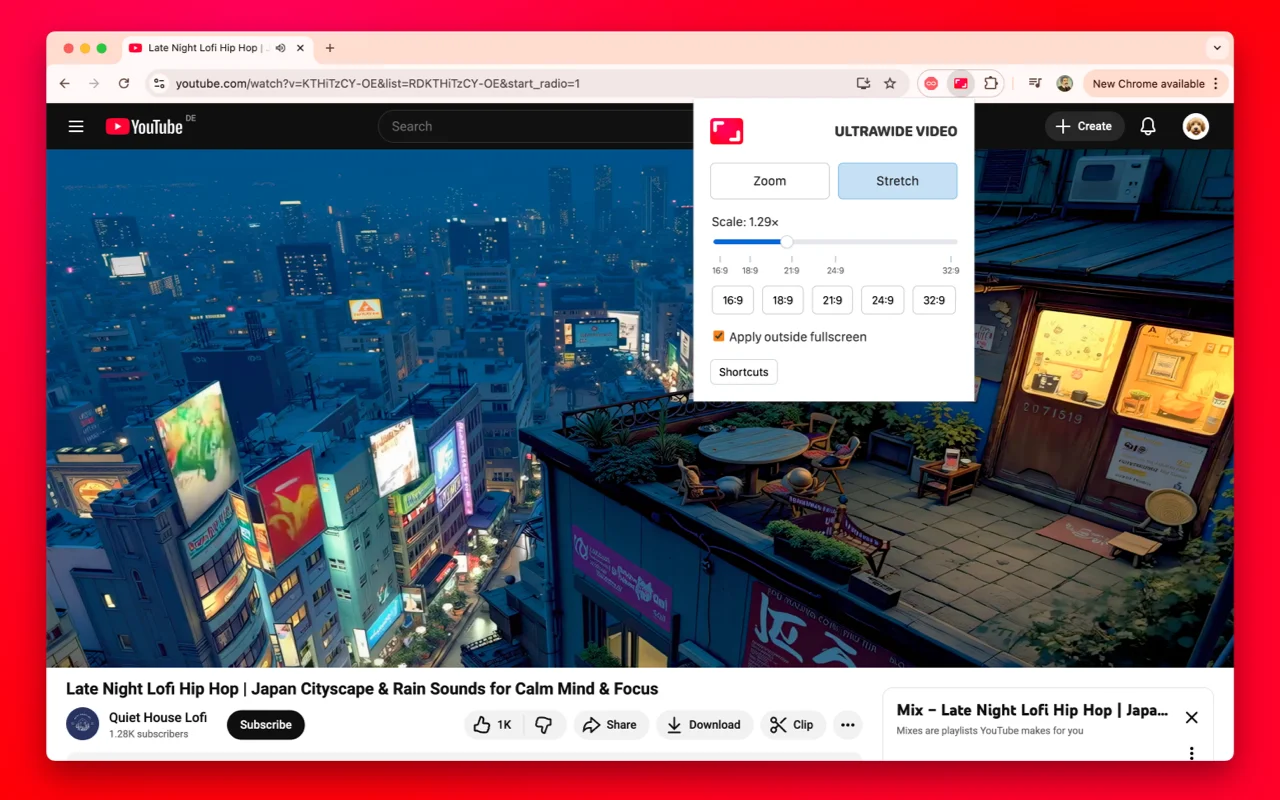
- Open a video and click the extension icon. The popup appears over the page.
- Pick a mode: Zoom or Stretch. Zoom scales the video up proportionally until it fills your screen width, cropping the overflow. Stretch widens it horizontally without cropping. For letterboxed movie content, Zoom; details on choosing below.
- Optional — pick your ratio. Presets for 16:9, 18:9, 21:9, 24:9 and 32:9 match the zoom exactly to your panel, and a scale slider (e.g. 1.29×) handles anything in between. Not sure which you need? Check the ultrawide resolution list.
- Go fullscreen. Bars gone, picture edge to edge.
Keyboard Shortcuts
Once the extension is installed you rarely need the popup — adjust while watching:
- Windows/Linux: Ctrl+↑ to zoom in, Ctrl+↓ to zoom out
- Mac: ⌘⇧↑ and ⌘⇧↓
Tap until the bars vanish, tap back if a caption or scoreboard gets clipped. It works mid-playback, so you can tune per video in a second.
"Apply Only in Fullscreen"
The setting worth enabling on day one. With it on, videos behave normally while you browse — thumbnails, comments and windowed playback untouched — and the zoom kicks in only when you go fullscreen, which is when bars actually annoy you. Set it and forget the extension exists until a movie fills your screen and you smile.
Zoom or Stretch: Which Should You Pick?
- Zoom keeps proportions perfect and crops the edges. Use it for letterboxed widescreen uploads (crops only black — the pure win) and whenever accuracy matters. This is the right default.
- Stretch keeps every pixel and widens the image ~33% on a 21:9 screen. Geometry purists wince, but for casual content — vlogs, podcasts, gameplay — many people stop noticing within minutes. Use it when cropping would cut something you care about (edge-of-frame action, on-screen text).
Rule of thumb: movie-shaped content gets Zoom, information-dense content gets Stretch or nothing.
Does YouTube Have Native Ultrawide Videos?
Yes — and they're the one case where you need nothing at all. YouTube stores uploads in their original aspect ratio, so a video shot and uploaded in true 21:9 fills a 21:9 monitor edge to edge in fullscreen, no extension required. Search "21:9 demo" or browse channels that publish ultrawide gameplay and scenery footage and enjoy.
The catch is supply: native ultrawide uploads are a rounding error next to the ocean of 16:9 content, and plenty of "ultrawide" videos are actually 16:9 files with letterbox bars baked in — which windowbox on your screen and need the Zoom treatment like any movie trailer. Quick test: pause fullscreen and look at the bars. Perfectly gone = native 21:9. Bars on any side = time for the extension.
Troubleshooting
- Nothing happens? Reload the tab — required once after installation.
- Video looks wrong on one site? Check the aspect preset matches your monitor (34-inch ultrawides are 21:9; 49-inch super ultrawides are 32:9 — see the resolution list if unsure).
- Bars still there in a window? If "apply only in fullscreen" is on, that's by design — hit fullscreen.
- A preset overshoots or undershoots? Odd uploads (2.35:1, 2:1 "Univisium" shows) sit between presets — use the scale slider or the keyboard shortcuts to dial them in manually.
- Embedded players? The extension handles iframes, but the reload-after-install rule applies to those pages too.
- Shortcuts do nothing? Another extension may claim the same keys — check your browser's extension shortcut settings.
The Manual Alternatives, Honestly Compared
Browser zoom hack (Ctrl and +, then fullscreen). Zooming the page to ~130% enlarges the player past the bars. It sort of works — but it magnifies the entire page, so controls and captions balloon too, the zoom level is a blunt instrument that rarely matches your ratio, and you must undo it after every video. It's the duct-tape version of what the extension does surgically.
YouTube's own settings. There's no crop, zoom or aspect control in the desktop player — not in the quality menu, not in miniplayer, nowhere. The mobile app lets you pinch to fill the screen; the desktop site simply has no equivalent. This isn't fixable from inside YouTube.
"Stretch video online" converters. Sites that re-encode an uploaded file to a new aspect ratio. Useless for YouTube (you're streaming, not holding a file), slow and quality-degrading even when you do have the file. If you own the video and it plays in a browser tab, the extension stretches it live — no re-encoding, no upload, nothing permanent.
A media player (VLC/mpv) via a downloader. Real aspect controls, but it means downloading videos — against YouTube's terms and a clunky detour for everyday watching.
For streaming video, an in-browser fix is the only approach that's instant, reversible and per-video. That's exactly the niche the extension fills — on YouTube and on Netflix alike.
Two Minutes, Once
Install, reload, pick Zoom, enable fullscreen-only. From then on your 21:9 monitor does what it was built for: trailers, films and full-width uploads edge to edge, with Ctrl+↑ standing by for everything else. The black bars were never a hardware problem — just a software gap that takes one extension to close.

Watching on an ultrawide monitor?
UltraWide Video removes black bars from YouTube, Netflix, Prime Video and any other site — zoom or stretch any video to fill your 21:9 or 32:9 screen.