Ultrawide Resolutions: The Complete List (2560×1080 to 5120×2160)
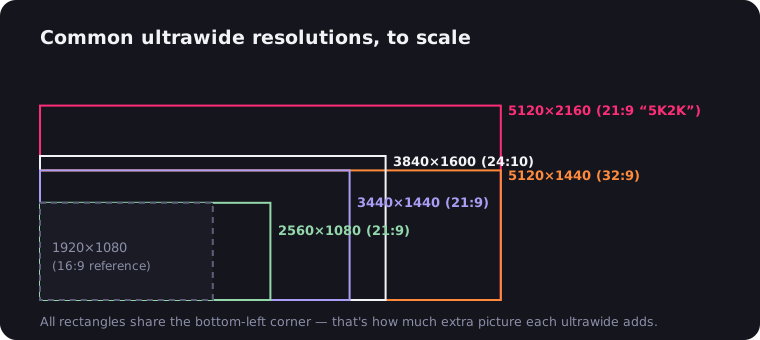
Ultrawide resolution names look like license plates — 3440×1440, 5120×1440, 5K2K — but the system behind them is simple: take a 16:9 resolution you already know and add roughly a third more width (or, for 32:9, double it). This guide lists every ultrawide resolution that matters, with the numbers that actually decide your purchase: pixel count, sharpness at typical sizes, and how hard your GPU has to work.
The Complete Ultrawide Resolution Table
| Resolution | Aspect | Name | Typical size (PPI) | Pixels | vs 1080p |
|---|---|---|---|---|---|
| 2560×1080 | ~21:9 (64:27) | UW-FHD | 29" (96), 34" (82) | 2.76M | 1.33× |
| 3440×1440 | ~21:9 (43:18) | UW-QHD | 34" (110) | 4.95M | 2.39× |
| 3840×1600 | ~21:9 (12:5) | UW-QHD+ | 38" (109) | 6.14M | 2.96× |
| 3840×1080 | 32:9 | DFHD | 49" (81) | 4.15M | 2.00× |
| 5120×1440 | 32:9 | DQHD | 49" (109) | 7.37M | 3.56× |
| 5120×2160 | ~21:9 (64:27) | 5K2K | 40" (139), 45" (123) | 11.06M | 5.33× |
| 7680×2160 | 32:9 | DUHD | 57" (140) | 16.59M | 8.00× |
For reference: 1920×1080 is 2.07M pixels, 2560×1440 is 3.69M, and 4K UHD (3840×2160) is 8.29M. Note that "21:9" is marketing shorthand — the actual panel ratios run from 2.37:1 to 2.40:1, matching cinema's scope format. The 21:9 aspect ratio explainer covers why.
The GPU Math: What These Pixels Cost
GPU load scales almost linearly with pixel count, so the arithmetic tells you most of what benchmarks confirm:
- 2560×1080 is 2.76M pixels — just 33% more than 1080p. Any GPU that handles 1080p comfortably handles this.
- 3440×1440 is 4.95M pixels — 2.4× the load of 1080p and 34% more than standard 1440p, but about 40% fewer pixels than 4K's 8.29M. This is the key fact of ultrawide shopping: 3440×1440 delivers a huge, cinematic image at roughly 60% of 4K's rendering cost.
- 5120×1440 is 7.37M pixels — exactly two 2560×1440 monitors' worth, and only 11% short of full 4K. Budget your GPU like a 4K buyer.
- 5120×2160 is 11.06M pixels — 33% more than 4K and over five times 1080p. This is enthusiast territory; without DLSS/FSR, even flagship cards feel it.
Rule of thumb: read GPU reviews at the 16:9 resolution nearest your target — 1080p results for 2560×1080, 1440p for 3440×1440 (then shave ~25% off the frame rate), 4K for 5120×1440 and up.
2560×1080: The Entry Point
The cheapest way to find out whether ultrawide life is for you. At 29 inches it's a tidy 96 PPI — same sharpness as a 24-inch 1080p monitor — and prices sit firmly in budget territory. You get the full 21:9 experience: scope movies edge to edge, wider game FOV, room for two real windows side by side.
The trap is size: at 34 inches, 2560×1080 drops to 82 PPI and text goes fuzzy. If you want a 34-inch panel, save up for 3440×1440 instead. Who it's for: first-time ultrawide buyers, older GPUs, and anyone testing the waters — our budget ultrawide guide lives here.
3440×1440: The Sweet Spot
The default ultrawide resolution, and deservedly so. At 34 inches you get ~110 PPI — noticeably sharper than 27-inch 1440p — a screen wide enough for three-column work, and a rendering load that mid-range GPUs from the last few generations can drive at high refresh rates. The panel selection is unmatched: IPS, VA, Mini-LED and OLED, 60Hz office panels to 240Hz gaming monsters.
Who it's for: almost everyone. Gamers get high FPS without a flagship card, professionals get dual-monitor width without the bezel, and movie nights get 2.39:1 films that fill the screen. If you're unsure which resolution to buy, buy this one.
3840×1600: More of Everything
The 38-inch class is 3440×1440's bigger sibling: 11% wider, 11% taller, same ~109 PPI sharpness. That extra height matters more than it sounds — you get meaningfully more rows of code, timeline, or spreadsheet without giving up any width. GPU-wise it's a real step: 6.14M pixels is 24% more than 3440×1440, closing in on 4K load at 74% of its pixel count.
Who it's for: people who tried a 34-inch and wanted "the same, but more," and deep-pocketed home-office builds. These panels are premium-priced — often nearer 40-inch 5K2K money than 34-inch money.
3840×1080 and 5120×1440: The Super Ultrawides
At 32:9 you leave "wide" and enter "panoramic": these 49-inch monitors are exactly two 16:9 screens fused together — 3840×1080 is dual 1080p, 5120×1440 is dual 1440p, seam deleted. Skip 3840×1080 unless it's heavily discounted; 81 PPI on a 49-inch panel is visibly coarse. 5120×1440 at ~109 PPI is the format done right.
The use case is specific but glorious: sim racing rigs, flight sims, trading and monitoring setups, and one-cable replacement of a dual-monitor desk (most support picture-by-picture from two sources). Feed it well — 7.37M pixels is near-4K load. Who it's for: covered in depth in our super ultrawide and 49-inch monitor guides.
5120×2160: The Endgame
5K2K is 4K with a third more width — 11.06M pixels of it. At 40 inches that's 139 PPI, sharp enough that text looks print-like; the newer 45-inch OLEDs land around 123 PPI and add perfect blacks. This is the only 21:9 resolution that beats 4K on both sharpness and width, which is why it headlines our 4K ultrawide guide.
The costs are equally endgame: four-figure prices, a GPU budget to match (33% more pixels than 4K), and — for gaming — a hard dependency on DLSS or FSR in new titles. Who it's for: video editors and colorists (a 4K timeline fits with panels to spare), developers, and enthusiasts who want one monitor to end all monitors.
7680×2160: Dual 4K, Because Why Not
The current ceiling: 57-inch 32:9 panels running two full 4K screens side by side — 16.59M pixels, exactly 2× 4K and 8× 1080p, at a crisp ~140 PPI. It's a spectacular monitoring and productivity surface and an outrageous sim rig. It's also the hungriest display you can plug into a consumer GPU; without aggressive upscaling, native-resolution gaming is a flagship-card story, and even desktop use demands DSC-capable ports. File under "aspirational" unless your GPU cost more than the monitor.
A Note on Scaling
PPI decides whether you run the desktop at 100% or scaled, and it changes the real estate you actually get. The ~81–96 PPI panels (2560×1080 at any size, 3840×1080) run at 100% — every pixel is workspace. The ~110 PPI class (3440×1440, 3840×1600, 5120×1440) also runs comfortably at 100% for most eyes; text is small but crisp. At 139 PPI, 5K2K wants 125–150% scaling on Windows, which lands you at an effective workspace between 3440×1440 and 4096×1728 — everything the sweet spot offers, drawn twice as sharply. Mac users take note: macOS's scaling is happiest at high-PPI extremes, which makes 5K2K the most Mac-friendly ultrawide — more in our MacBook Pro monitor guide.
Cables and Bandwidth: Check Before You Buy
High-resolution ultrawides can outrun old ports. Rough guide: 3440×1440 up to 144Hz is fine on DisplayPort 1.4; push 3440×1440 or 5120×1440 to 240Hz, or 5K2K past 60–75Hz, and you're relying on DSC (Display Stream Compression) over DP 1.4, HDMI 2.1, or the newer DP 2.1. DSC is visually lossless in practice, so this isn't a quality worry — it's a compatibility one. Before buying, confirm your GPU's ports and your laptop's USB-C/Thunderbolt alt-mode can carry the monitor's native resolution at its native refresh. Nothing stings like a 240Hz panel running at 120Hz because of a cable.
One Thing No Resolution Fixes: 16:9 Video
Whichever ultrawide resolution you pick, the web will keep serving you 16:9 video, and your beautiful wide panel will frame it between black pillars — on a 32:9 screen, the bars are each as wide as half the video. Scope films inside 16:9 streams are worse: bars on all four sides.
The fix isn't a different monitor, it's software. The UltraWide Video extension for Chrome and Edge zooms or stretches web video to your exact ratio — with presets from 18:9 to 32:9 — on YouTube, Netflix and everywhere else. Here's why those bars exist and how to clear them off YouTube.
Quick Recommendations
- Cheapest entry: 2560×1080 at 29 inches — never at 34.
- Best all-rounder: 3440×1440 at 34 inches. When in doubt, this.
- Maximum immersion: 5120×1440 at 49 inches, GPU budget permitting.
- Money no object: 5120×2160 at 40–45 inches.
Match the resolution to your GPU using the pixel math above, keep PPI at 95 or better, and any screen on this list will make a 16:9 monitor feel narrow within a week.

Watching on an ultrawide monitor?
UltraWide Video removes black bars from YouTube, Netflix, Prime Video and any other site — zoom or stretch any video to fill your 21:9 or 32:9 screen.