Ultrawide Monitor Setup: Desk, Arm, and Software Done Right
An ultrawide monitor setup fails in predictable places: a desk that's 10 cm too shallow, a monitor arm rated for a panel half the weight, a cable that silently caps your refresh rate, and windows maximized across 49 glorious inches like it's still 2005. All four are avoidable, and none of them are expensive to get right. Here's the full checklist — desk, arm, cables, software, and the video settings almost everyone forgets — whether you're installing your first 34-inch or stacking two.
Desk depth and viewing distance
The wider the panel, the further back you want to sit — otherwise you're turning your head like you're watching tennis. Rules of thumb that hold up in practice:
| Monitor size | Comfortable viewing distance | Minimum desk depth |
|---|---|---|
| 29–34" (21:9) | 60–90 cm | 60 cm |
| 38" (21:9) | 70–100 cm | 65 cm |
| 49" (32:9) | 80–110 cm | 70 cm, 80 cm is better |
| 57" (32:9) | ~1 m or more | 80 cm+ |
Two notes on that table. First, curvature buys you comfort: a 1000R or 1800R curve bends the edges toward you, which is why aggressive curves dominate the 49-inch class. Second, a monitor arm effectively deepens your desk — pushing the panel back past the desk's rear edge often rescues a 60 cm desk. Height-wise, put the top of the screen at or slightly below eye level, with a few degrees of downward tilt on big panels.
The arm: where ultrawide setups actually go wrong
Almost every ultrawide has a standard 100×100 VESA mount, so compatibility isn't the problem. Weight and width are. A 34-inch panel typically weighs 6–8 kg without its stand; 49-inch panels run roughly 11–15 kg. The popular mid-range arms most people already own are rated to about 9–11 kg — fine for the 34, over the line for many 49s. And a metre-wide panel puts real leverage on the arm's joints, so a 49 on an undersized arm sags, drifts, and vibrates every time you type.
What to check before buying:
- The full load range, not just the max. Gas-spring arms have a minimum rating too. A light 29-inch panel on a heavy-duty arm slowly floats upward; a heavy 49 on a light arm nods downward no matter how hard you crank the tension screw.
- Heavy-duty class for 32:9. For 49-inch panels, look at arms explicitly rated for them — the heavy-duty tier rated to roughly 19 kg (Ergotron HX class and equivalents). Some vendors ship a specific pivot for deep 1000R curves; check the fine print.
- The desk itself. A clamp concentrates the whole cantilevered load on a few square centimetres of desk edge. Solid wood is fine; a hollow-core top may need the grommet mount or a reinforcement plate.
- At 57 inches, reconsider. The biggest panels exceed what common arms are rated for — the factory stand exists for a reason.
If you're weighing one big panel against two normal ones, our ultrawide vs dual monitor comparison covers that fork in the road.
Cables: the silent refresh-rate killer
High-resolution, high-refresh ultrawides are exactly where cable bandwidth stops being theoretical. The math that matters:
- 3440×1440 at 144–175 Hz — fits comfortably in DisplayPort 1.4. Over HDMI 2.0 you'll cap out around 100 Hz, which is how people end up running an expensive monitor at two-thirds speed for a year.
- 5120×1440 at 240 Hz — the Samsung Odyssey G9 tier — exceeds raw DP 1.4 bandwidth and works via DSC (Display Stream Compression, visually lossless) or over HDMI 2.1. You need a GPU, port, and cable that all play along.
- 7680×2160 at 240 Hz (the 57-inch class) needs DisplayPort 2.1 for the full refresh — check your GPU generation before assuming.
Practical rules: use the boxed cable first — it's certified for the monitor's full spec. If you replace it, buy VESA-certified DisplayPort (DP40/DP80 labels) or Ultra High Speed certified HDMI, and keep runs short: 2 m is the safe zone, and long bargain cables are where flicker and black-screen dropouts come from.
Window management: the software half of the setup
Maximizing one window on an ultrawide wastes the entire point of the format. What you want is fast, keyboard-driven tiling:
- Windows: PowerToys FancyZones. Microsoft's free power-tool suite lets you draw custom zone layouts — a big 50% center column flanked by two 25% sidebars is the classic ultrawide layout — then Shift-drag windows to snap them in. On a 49-inch panel, a three-zone layout is the difference between a command center and chaos.
- macOS: Rectangle. Free, open source, keyboard-first: halves, thirds, and corners via shortcuts. Ultrawides shine on thirds — docs left, editor center, chat right.
- Manufacturer tools. Dell Display Manager, Samsung Easy Setting Box, and LG's OnScreen Control add snap layouts plus monitor-side tricks — most usefully Picture-by-Picture, which splits one 32:9 panel into two virtual 16:9 inputs so a work laptop and a desktop can share the screen, often with a KVM switching your keyboard and mouse between them.
Dual ultrawide: stacking done right
Yes, people run two ultrawides — and side-by-side is usually the wrong answer, because two 34-inch panels in a row form a 3.5-metre-wraparound neck workout. Stacking is the move: main panel at eye level, second ultrawide above it, tilted down 15–30 degrees so it faces your eyes.
The physics gets serious, though. Two panels means 15+ kg cantilevered off one desk edge: you want a purpose-built dual-stacked arm rated for the combined load, or two heavy-duty arms and a thick desktop. Keep your primary work dead center at eye level and treat the top screen as reference territory — dashboards, comms, the stream you're half-watching. Your neck accepts occasional glances upward; it does not accept working up there. And check your GPU: two 3440×1440 panels at high refresh is a lot of pixels — our gaming ultrawide guide has the frame-rate reality check.
The forgotten step: making video actually fill the screen
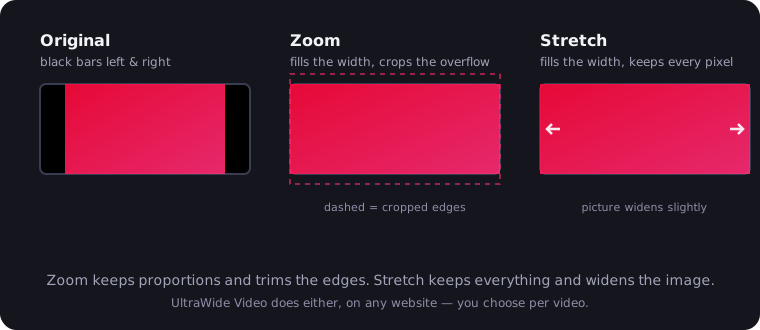
Here's the part almost every ultrawide setup guide skips. After the arm is level and the zones are drawn, you open YouTube or Netflix — and the video sits in a 16:9 box with black bars down both sides. On a 49-inch panel, nearly 40% of the screen you just carefully mounted is displaying nothing. The bars aren't a bug; web video is simply delivered in a 16:9 frame, and widescreen films even carry baked-in bars of their own.
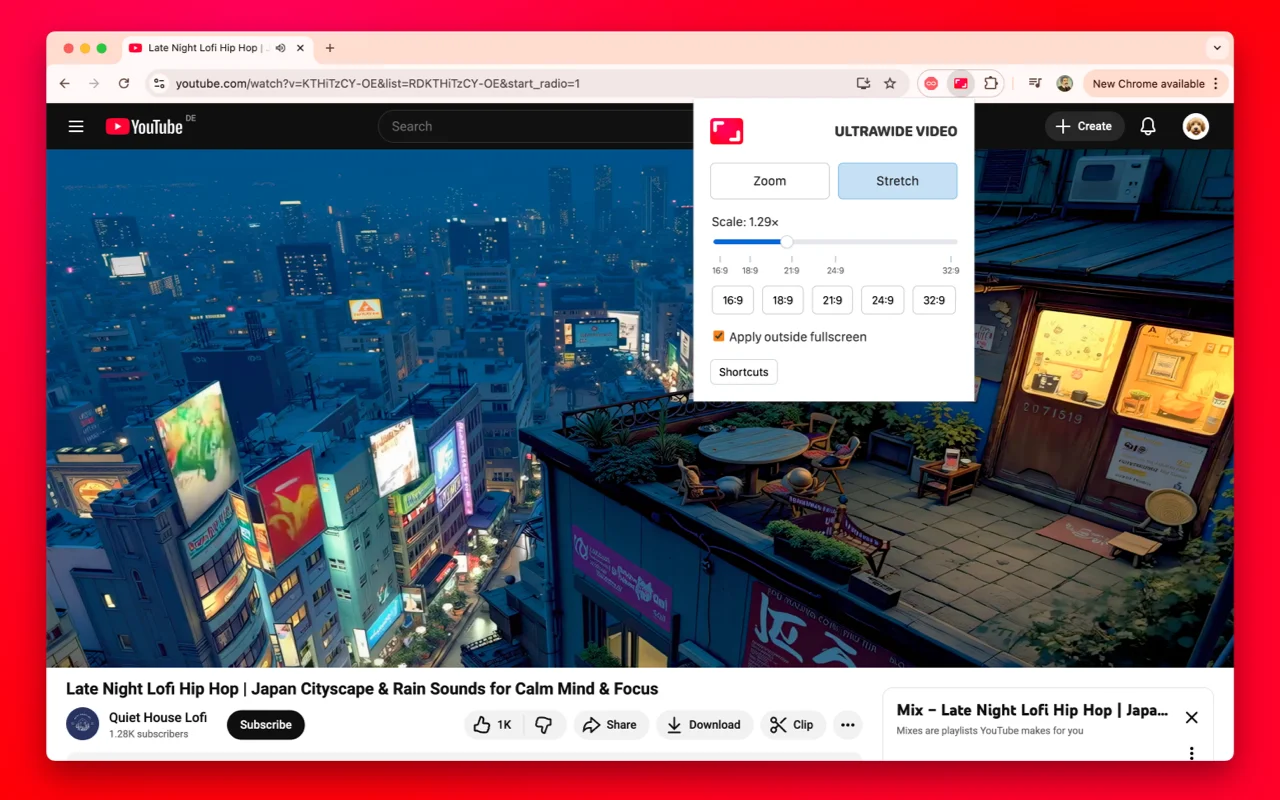
The fix takes a minute: the free UltraWide Video extension for Chrome and Edge adds a Zoom mode that scales video to fill your screen (cropping the excess) and a Stretch mode that widens it without cropping, with presets for 21:9 and 32:9 and keyboard shortcuts (Ctrl+↑/↓) to adjust on the fly. For CinemaScope films the zoom is essentially free — the movie is already ultrawide-shaped, as our Netflix on ultrawide guide shows step by step. Enable "apply only in fullscreen" and it stays out of the way until showtime.
The setup checklist
Before you call it done:
- Distance: 60+ cm to a 34, 80+ cm to a 49; top of screen at eye level.
- Arm: panel weight inside the arm's min–max range; heavy-duty class for 32:9; desk edge solid enough for the clamp.
- Cable: the boxed cable or a certified replacement, 2 m or shorter; then open the OSD and confirm the refresh rate you paid for.
- Software: FancyZones or Rectangle configured with a three-zone layout; PBP/KVM set up if two machines share the panel.
- Video: black bars handled, so movie night actually uses the monitor.
Get those five right and the ultrawide stops being a peripheral and starts being the desk. If you're still choosing which panel to mount, our best ultrawide monitors guide is the place to start.

Watching on an ultrawide monitor?
UltraWide Video removes black bars from YouTube, Netflix, Prime Video and any other site — zoom or stretch any video to fill your 21:9 or 32:9 screen.