Ultrawide vs Dual Monitors: Which Setup Actually Wins?
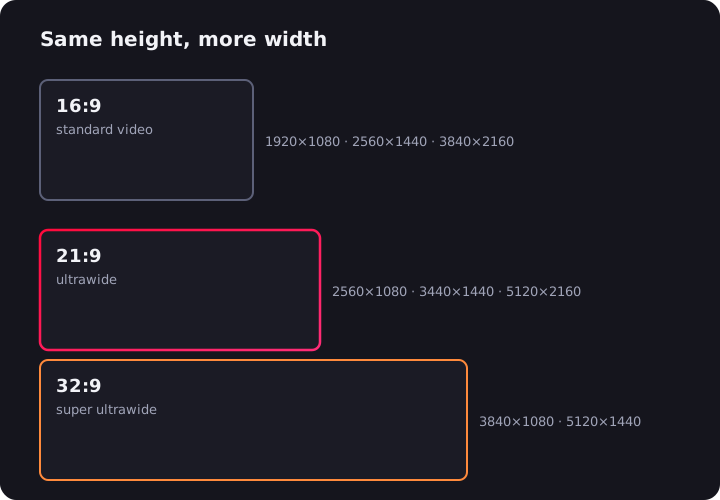
The ultrawide vs dual monitor debate has been running for a decade, and most takes on it are written by someone defending whatever's already on their desk. Let's do it properly instead: category by category, with the trade-offs spelled out, and a straight answer at the end about who should buy which. Spoiler: there is no universal winner — but there is almost certainly a right answer for you.
Desk space and ergonomics
A 34-inch 21:9 ultrawide is about 80 cm wide and sits on one stand with one power cable and one video cable. Two 27-inch monitors span roughly 1.2 meters, need two stands (or an aftermarket dual arm), double the cables, and put a plastic seam right where your eyes spend the most time.
There's also the geometry problem. With two flat panels you either angle them inward like a cockpit or accept that the far edges are viewed at a slant. An ultrawide — especially a curved one — keeps every part of the screen at a more consistent distance and puts the center of the action directly in front of you. Your neck does less commuting.
Winner: ultrawide, unless your desk is deep but narrow, in which case stacking one monitor above another beats both.
Productivity: continuous canvas vs hard split
Here's where it gets genuinely interesting, because "more screen" behaves differently depending on the shape.
An ultrawide gives you one continuous canvas. For timeline-based work — video editing, audio production, spreadsheets with too many columns, log files, Gantt charts — 3440 uninterrupted pixels of width is a straight-up superpower. No timeline ever straddles a bezel. Editors who switch rarely go back.
Dual monitors give you physical separation, and that's a feature, not a bug. Fullscreen a browser on one panel and your IDE on the other — no window management at all. One screen becomes "the work" and the other becomes "the reference," and the bezel is a mental boundary between them.
But software has mostly erased dual's advantage. PowerToys FancyZones on Windows and Rectangle or Magnet on macOS let you carve an ultrawide into two or three snap zones that behave like virtual monitors — same hard edges, no plastic in the middle. It's a five-minute setup that closes most of the gap.
One real, stubborn dual-monitor win: screen sharing. Share an ultrawide in a video call and remote viewers get your 3440-pixel canvas squeezed into their 16:9 window — tiny text, much squinting. With duals you share one clean 16:9 screen and keep your notes on the other. If you present a lot, weigh this heavily.
A quieter point in the ultrawide's favor: focus. One panel means one place to look. Plenty of dual-monitor setups quietly degrade into "work screen plus distraction screen," with Slack and YouTube permanently glowing in your peripheral vision. A single canvas where the second app must earn its window space keeps you honest.
Winner: tie. Timelines and immersion favor ultrawide; reference-heavy work and heavy meeting schedules favor dual. Our office ultrawide guide digs deeper into the productivity side.
Gaming
This one isn't close. A game rendered across a single 21:9 panel gives you a wider field of view and genuine peripheral immersion — racing, flight sims, and open-world games are transformative on an ultrawide. Try that on dual monitors and your crosshair sits on a bezel. Nobody games across two screens; you game on one and park Discord or a walkthrough on the other.
The caveats: a handful of competitive titles lock the aspect ratio to 16:9 for fairness, and driving 3440×1440 takes roughly 34% more GPU than 2560×1440. Both are footnotes, not dealbreakers. If gaming is the priority, start with our ultrawide gaming monitor guide.
Winner: ultrawide, decisively.
Watching video
An ultrawide at 3440×1440 is almost exactly the 2.39:1 shape movies are filmed in — a scope film can fill it edge to edge like a private cinema. The catch is that streaming services ship everything in 16:9 containers, so by default you get black bars instead of glory. That's a solved problem: the UltraWide Video extension zooms the picture to fill the panel on Netflix, YouTube, Disney+, and everywhere else.
Dual monitors can't compete here even in theory. Video fills one 16:9 panel; the second one just glows in your peripheral vision like a guilty conscience.
Winner: ultrawide.
The cost math
Starting from zero, prices are closer than people expect. A solid 34-inch 3440×1440 ultrawide costs about the same as two decent 27-inch 1440p panels once you've added a dual arm. Ultrawide also saves a video output — relevant on laptops with one free port, where a single cable (USB-C on many models) drives the whole desk.
The plot twist: if you already own a good monitor, dual wins on price by default. Adding a matching second panel costs a fraction of replacing everything with an ultrawide. That inertia, more than any philosophy, is why dual setups remain so common.
Budget-conscious? A 2560×1080 ultrawide gets you the shape for the price of one mid-range 16:9 panel — see our budget ultrawide picks.
Head to head
| Category | Ultrawide | Dual monitors |
|---|---|---|
| Desk footprint & cabling | ✅ One stand, two cables | ❌ Wider, double everything |
| Timeline work (video, audio, data) | ✅ Bezel-free canvas | ❌ Seam mid-timeline |
| Fullscreen-app multitasking | ➖ Needs snap tools | ✅ Built in |
| Screen sharing in calls | ❌ Squished for viewers | ✅ Share one clean 16:9 |
| Gaming immersion | ✅ Wide FOV, no seam | ❌ Bezel in the crosshair |
| Watching movies | ✅ Fills 21:9 (with the extension) | ❌ One 16:9 panel + one idle |
| Cost from scratch | ➖ Comparable | ➖ Comparable |
| Cost if you own one monitor | ❌ Full replacement | ✅ Just add one |
| Flexibility & resale | ❌ All or nothing | ✅ Reuse, rotate, resell separately |
So which should you buy?
Pick an ultrawide if you game, edit video or audio, watch a lot of films, or simply want one clean panel and a tidy desk. Grab a window snapping tool on day one and you give up very little multitasking.
Pick dual monitors if you already own a good screen, you're in video calls sharing your screen half the day, or your work is genuinely two-fullscreen-apps-at-once (code + docs, ticket queue + dashboard) and you'd rather not think about window zones.
Or refuse to choose. A 49-inch super ultrawide at 5120×1440 is literally two 27-inch QHD monitors fused without a bezel — the hybrid answer for people who want the split and the canvas. We've covered them in our 49-inch ultrawide guide and the broader super ultrawide overview.
Whichever way you land on the shape, choosing the actual screen is its own rabbit hole — our no-nonsense ultrawide buyer's guide sorts the market by what you actually need.

Watching on an ultrawide monitor?
UltraWide Video removes black bars from YouTube, Netflix, Prime Video and any other site — zoom or stretch any video to fill your 21:9 or 32:9 screen.