YouTube Aspect Ratio: What It Is and How the Player Handles It
Short answer: YouTube's standard aspect ratio is 16:9 — the player is built around it, the recommended upload resolution is 1920×1080, and a 16:9 video is the only kind that fills the frame perfectly on a typical screen. But YouTube doesn't force 16:9. Upload a vertical, square or cinematic video and YouTube keeps its original shape, then adapts the player around it. How exactly it adapts — and what that means on phones, desktops and ultrawide monitors — is where it gets interesting.
The Player Is 16:9. Uploads Don't Have to Be
YouTube stores every video at the aspect ratio it was uploaded in. There's no conversion, no forced crop. What changes is presentation:
- On desktop, the player dynamically resizes to match the video. A 16:9 upload gets the classic widescreen player. A vertical 9:16 upload gets a taller, narrower player embedded in the page — within limits, since a video can't be taller than your browser window. A square 1:1 video sits between the two.
- In fullscreen, your monitor's shape takes over. Whatever doesn't match gets black bars: vertical video is flanked by enormous pillars, cinematic video gets slim bars top and bottom.
- On mobile, the app does the same dance in miniature, plus a pinch-to-fill gesture that crops the video to your phone's screen shape.
- In embeds, the frame is whatever size the website chose — usually 16:9 — and any other ratio gets boxed inside it.
The takeaway for viewers: black bars on YouTube are almost never "part of the video" being wrong. They're the player reconciling two shapes that don't match.
What Happens to Each Upload Shape
| Upload ratio | In the desktop player | Fullscreen on a 16:9 monitor |
|---|---|---|
| 16:9 | Fills the player exactly | Fills the screen |
| 9:16 (vertical) | Tall narrow player | Huge bars left and right |
| 1:1 (square) | Squarish player | Bars left and right |
| 4:3 (retro) | Nearly square player | Bars left and right |
| 2.39:1 (cinematic) | Wide player, bars baked in or added | Bars top and bottom |
That last row deserves a note. Most movie trailers and many cinematic uploads are actually 16:9 files with the letterbox bars encoded into the picture. YouTube treats them as ordinary 16:9 video — which is exactly why they behave badly on wide screens, as we'll get to.
Recommended Upload Specs (Briefly)
If you're the one uploading, the safe path is well documented: 16:9, 1920×1080 for standard HD, with the same ratio scaling up through 2560×1440, 3840×2160 (4K) and beyond. YouTube accepts anything from 426×240 to 7680×4320.
Two rules matter more than any resolution number:
- Upload the native ratio. Shot vertical? Upload vertical. YouTube will frame it properly on every device.
- Never add your own black bars. Padding a vertical or cinematic video to 16:9 with baked-in bars is the classic mistake — the bars become part of the image, the player adds more bars around them on mismatched screens, and viewers end up with a small picture in a large black frame. YouTube's own guidance says the same: no letterboxing, no pillarboxing, ever.
The Ultrawide Problem
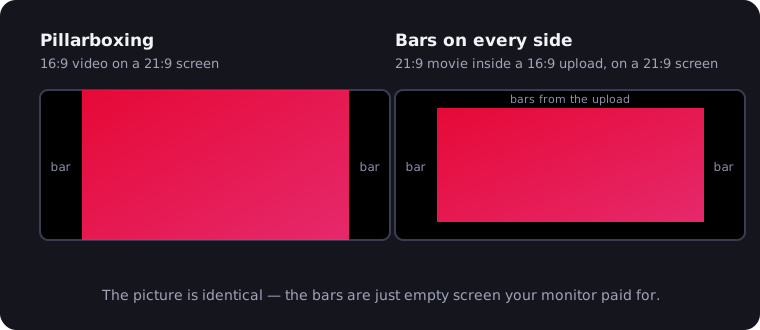
Now flip to the viewer's side — specifically a 21:9 or 32:9 monitor. YouTube's 16:9 world meets an even wider screen, and every fullscreen video gets pillarboxed: picture in the middle, black columns left and right. On a 34-inch ultrawide the columns eat about a seventh of the screen each; on a 49-inch super ultrawide, the bars combined are as wide as the video.
Cinematic uploads are the truly absurd case. A 2.39:1 trailer arrives as a 16:9 file with letterbox bars baked in; your ultrawide then pillarboxes that file. Result: bars on all four sides, framing a picture that is almost exactly the shape of your monitor. The geometry of it is explained in why movies have black bars — but you don't need the theory to be annoyed by it.
YouTube's desktop player has no zoom, crop or aspect control, so the fix lives in the browser: the free UltraWide Video extension for Chrome and Edge zooms the video to your panel's exact ratio — for baked-in letterbox content it crops nothing but black. The step-by-step YouTube guide covers setup, shortcuts and the Zoom-vs-Stretch choice in three minutes.
A Brief History: YouTube Wasn't Always 16:9
The 16:9 player is younger than the site. YouTube launched in 2005 with a 4:3 player — the shape of the era's TVs and webcams — and switched to widescreen 16:9 in late 2008 as HD uploads took off. That transition is why very old uploads sit between pillars in today's player: they were the right shape for a frame that no longer exists. The lesson generalizes — players change, screens change, and the aspect ratio baked into a video at upload is the one thing that stays. Which is exactly why YouTube now preserves whatever ratio you give it instead of forcing one.
A Note on Shorts: 9:16
Shorts are YouTube's vertical format: 9:16, shot tall, up to three minutes long, with 1080×1920 as the standard resolution. On phones they fill the screen edge to edge — the one YouTube format that's actually designed for how the viewing device is held. On desktop, Shorts play in a tall centered player, and fullscreening one on an ultrawide monitor produces the largest black bars the platform can offer: a phone-shaped sliver of video between two vast black fields. No tool fixes that one sensibly — a 9:16 video on a 32:9 screen is a 16× shape mismatch. Some content simply belongs on the device it was made for.
Thumbnails and Channel Art
Two adjacent ratios worth knowing if you run a channel: thumbnails are 16:9 (1280×720 recommended — anything else gets cropped or padded in previews), and channel banners are a very wide 16:5.4 (2560×1440 with the critical content in a central "safe area"). Both follow the same logic as the player: design for the frame you'll actually be shown in.
The Bottom Line
YouTube is a 16:9 platform that politely tolerates every other shape. Uploads keep their native ratio, the desktop player stretches and squeezes itself to fit, and fullscreen playback hands the problem to your monitor — which is why the same video can look perfect on a laptop, cramped on a phone, and bar-framed on an ultrawide. If your screen is the wide kind, the player will never fill it on its own; three clicks and a free extension will.

Watching on an ultrawide monitor?
UltraWide Video removes black bars from YouTube, Netflix, Prime Video and any other site — zoom or stretch any video to fill your 21:9 or 32:9 screen.